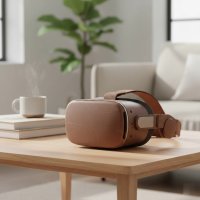
Stepping into the world of virtual reality on a PC is an experience unlike any other. While standalone headsets offer incredible convenience, pairing a VR headset for PC with a powerful rig unlocks a universe of unparalleled graphical fidelity, complex simulations, and expansive games. If you’re ready to dive into the deep end of immersive entertainment, you’ve come to the right place. This guide will walk you through everything you need to know to choose the perfect PC VR headset for your needs and budget.
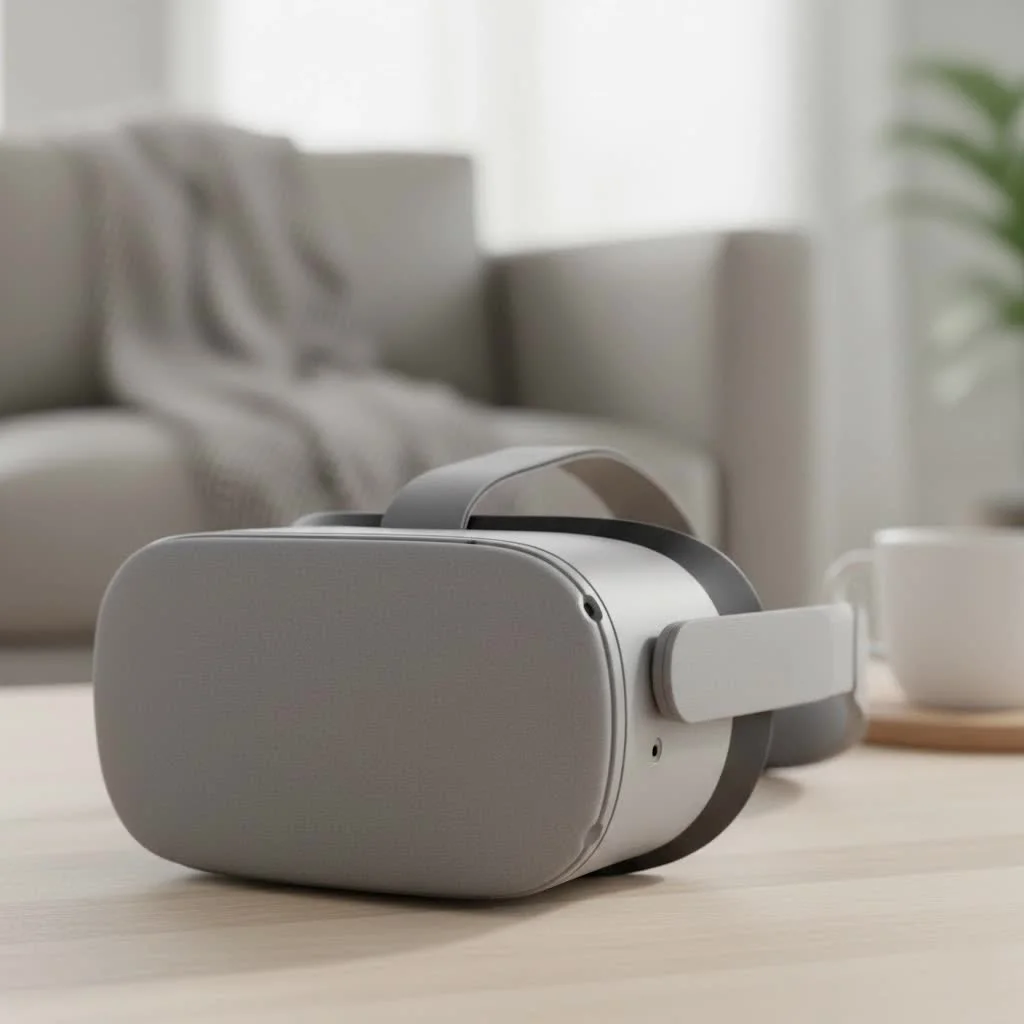
For years, I’ve lived and breathed virtual reality, and the leap in performance you get from PC VR is consistently breathtaking. It’s the difference between watching a movie on your phone and experiencing it in a full-blown IMAX theater. The raw power of a dedicated graphics card and processor renders worlds with a level of detail and smoothness that standalone devices are still striving to achieve. For expert virtual reality reviews on this site.
Why Choose a VR Headset for PC?
In an era of increasingly capable standalone headsets like the Meta Quest 3, you might wonder why you should still consider a dedicated VR headset for PC. The answer lies in three key areas: performance, library, and graphical quality.
PC VR leverages your computer’s GPU and CPU to deliver experiences that are visually richer and more complex. This means higher resolutions, more detailed textures, advanced lighting effects, and more sophisticated physics. Games like Half-Life: Alyx, Microsoft Flight Simulator, and Assetto Corsa Competizione are simply on another level when running on a capable PC.
Furthermore, the PC VR ecosystem, primarily through platforms like SteamVR and the Oculus Rift store, offers a massive library of titles that have been developed over the years, many of which are not available on standalone platforms due to their demanding nature.
Key Features to Look For
When shopping for a PC VR headset, several technical specifications will determine the quality of your experience.
- Resolution: Measured in pixels per eye, higher resolution means a sharper, clearer image with less of the “screen door effect” (visible lines between pixels).
- Refresh Rate: This is how many times the display updates per second, measured in Hertz (Hz). A higher refresh rate (90Hz or above) results in smoother motion and reduces the likelihood of motion sickness.
- Field of View (FoV): FoV determines how much of the virtual world you can see at any given moment. A wider FoV increases immersion by filling more of your peripheral vision.
- Tracking: This is how the system follows the movement of your head and hands. “Inside-out” tracking uses cameras on the headset itself, making setup easier. “Outside-in” tracking relies on external sensors (base stations) for potentially more precise, room-scale tracking.
- Connectivity: How does the headset connect to your PC? Native PC VR headsets typically use a DisplayPort and USB cable. Hybrid or standalone headsets often use a USB-C cable (Oculus Link) or a wireless connection via Wi-Fi (Air Link, Virtual Desktop).
“The choice between a native PC VR headset and a hybrid one like the Quest 3 often comes down to priorities,” notes VR expert Dr. Alistair Finch. “If your sole focus is the highest fidelity PC VR without compromise, a DisplayPort connection is still the gold standard. But if you value flexibility and wireless freedom, the streaming solutions have become remarkably effective.”
Is Your PC Ready for VR?
Before you purchase a VR headset for PC, you must ensure your computer is up to the task. Running two high-resolution displays at a high frame rate is incredibly demanding.
Minimum System Requirements
|
Our Picks for the Best VR Headset in 2026
As an Amazon Associate I earn from qualifying purchases.
|
||
| Num | Product | Action |
|---|---|---|
| 1 | PlayStation VR2 Horizon Call of The Mountain™ Bundle (PSVR2) |

|
| 2 | Oculus Quest 2 VR Headset 128GB Holiday Set - Advanced All-in-One Virtual Reality Headset Cover Set, White |
|
| 3 | PlayStation VR2 (PSVR2) |
|
| 4 | Oculus Quest 2 Advanced All-in-One Virtual Reality Gmaing VR Headset 128GB Set, White |
|
| 5 | DESTEK V5 VR Headset for Kids w/VR Gamepad, 128 Premium VR apps Included, Anti-Blue Eyes Protected HD Lenses, 110° FOV Virtual Reality Headsets for iPhone, Android Phone- Black |
|
| 6 | FEEBZ 3D VR Headset for Kids 2.0 + Android Remote - for iPhone & Android Phones - with 3D VR Videos & Apps Links - Virtual Reality Goggles Set for Beginners |
|
| 7 | Meta Quest 2 — Advanced All-In-One Virtual Reality Headset — 256 GB (Renewed) |
|
| 8 | FEEBZ 3D VR Headset for Kids 2.0 + Android Remote - for iPhone & Android Phones - with 3D VR Videos & Apps Links - Virtual Reality Goggles Set for Beginners |
|
| 9 | VR Headset for Nintendo Switch 2 (2025), Switch 2 Virtual Reality VR Glasses with Adjustable HD Lenses and Comfortable Head Strap, Labo VR Kit 3D Goggles for Switch 2 Accessories, White&Blue |
|
| 10 | VR Headset for Phone, Virtual Reality Glasses with Bluetooth Headphones for Adults and Kids Play 3D VR Games Movies (White VR Only) |
|
While requirements vary by headset and game, a general baseline for a good VR experience typically includes:
- CPU: Intel Core i5-4590 / AMD Ryzen 5 1500X or greater
- RAM: 8GB+ RAM (16GB is recommended)
- GPU (Video Card): NVIDIA GeForce GTX 1060 / AMD Radeon RX 480 or greater. For newer, high-resolution headsets, an RTX 3070 / RX 6700 XT or better is highly recommended.
- Video Output: DisplayPort 1.2 or newer (check the specific requirement for your chosen headset)
- USB Ports: 1x USB 3.0 port or faster
- Operating System: Windows 10 or Windows 11
The easiest way to check your system’s readiness is to run the SteamVR Performance Test. This free tool will analyze your hardware and tell you if your system is capable of running VR content at a stable 90fps.
Top VR Headsets for PC Gaming
The market for PC VR headsets is diverse, with options catering to different budgets and priorities.
The All-Around Champion: Meta Quest 3
While it’s a standalone headset, the Meta Quest 3 has become a top choice for PC VR enthusiasts. Its high-resolution display and pancake lenses provide excellent visual clarity. Through a USB-C cable (Meta Link) or a dedicated Wi-Fi 6E connection (Air Link), it can stream PC VR games with impressive quality and low latency. Its main advantage is versatility—you get a great standalone device and a powerful PC VR headset in one.
The High-Fidelity Enthusiast: Valve Index
Even years after its release, the Valve Index remains a benchmark for high-end PC VR. Its biggest strengths are its incredibly wide field of view, 144Hz refresh rate for ultra-smooth gameplay, and the innovative “Knuckles” controllers that track individual finger movements. It requires external base stations for tracking, which offers supreme accuracy but makes the setup more involved.
The Budget-Friendly Entry: A Pre-Owned Quest 2
For those looking to get into PC VR without a significant investment, a second-hand Meta Quest 2 is a fantastic option. It offers a solid resolution and can connect to a PC wirelessly or with a cable, just like its successor. While not as sharp as the Quest 3, it provides a full-featured PC VR experience for a fraction of the cost.
Comparison Table
| Feature | Meta Quest 3 | Valve Index |
|---|---|---|
| Type | Hybrid (Standalone + PC VR) | Native PC VR |
| Resolution | 2064 x 2208 per eye | 1440 x 1600 per eye |
| Refresh Rate | Up to 120Hz | Up to 144Hz |
| Field of View | ~110° Horizontal | ~130° Horizontal |
| Tracking | Inside-out | Outside-in (Base Stations) |
| Connection | USB-C or Wi-Fi | DisplayPort 1.2, USB 3.0 |
| Best For | Flexibility, Wireless PC VR, Value | Highest Fidelity, Immersion |
Getting Started: Setting Up Your Headset
Setting up your VR headset for PC is a straightforward process.
- Check Your PC: Run the SteamVR Performance Test to confirm compatibility.
- Install Software: Download the required software. For a Valve Index or most other headsets, you’ll need Steam and SteamVR. For a Meta Quest, you’ll need the Oculus PC app.
- Connect the Hardware:
- For Native Headsets (Valve Index): Position your base stations in opposite corners of your play area, facing inwards. Plug them into power. Then, connect your headset’s DisplayPort and USB cables to your PC.
- For Hybrid Headsets (Quest 3): To connect via cable, simply plug a high-quality USB-C cable into the headset and a USB 3 port on your PC. To go wireless, ensure your PC is connected to your router via an Ethernet cable and that your headset is on the same 5GHz or 6GHz Wi-Fi network.
- Run Room Setup: Both SteamVR and the Oculus app will guide you through a room setup process. This involves tracing the boundary of your safe play area to create a virtual wall, known as the “Guardian” or “Chaperone,” which prevents you from bumping into furniture.
- Launch a Game: Once setup is complete, you can browse the SteamVR or Oculus store and dive into your first experience.
Frequently Asked Questions (FAQ)
What is the best VR headset for PC?
The “best” headset depends on your priorities. For overall value and flexibility, the Meta Quest 3 is a top contender. For the highest-fidelity, most immersive experience with no budget constraints, the Valve Index is an excellent choice.
Can I use a VR headset on a laptop?
Yes, you can use a VR headset for PC with a laptop, provided it’s a “VR-Ready” gaming laptop. The key is to ensure it has a powerful, dedicated graphics card (e.g., NVIDIA RTX 3060 or better) and the necessary ports, specifically a DisplayPort or Mini DisplayPort for native headsets.
Is wireless PC VR as good as a wired connection?
Wireless PC VR has improved dramatically and, with an optimized network setup (a Wi-Fi 6 or 6E router connected directly to your PC), the experience can be nearly indistinguishable from a wired one. However, a direct DisplayPort connection will always provide the most stable, uncompressed video signal, eliminating any potential for network-related lag or compression artifacts.
Do I need a lot of space for PC VR?
Not necessarily. While “room-scale” VR, where you can walk around a designated area, is the most immersive way to play, most games also support seated or standing-in-place modes. You can enjoy incredible VR experiences at your desk with minimal space required.
What are the must-play PC VR games?
Some of the most acclaimed PC VR titles include Half-Life: Alyx, a masterpiece in VR game design; Beat Saber with custom songs from the PC community; Microsoft Flight Simulator for breathtaking realism; and social platforms like VRChat.
Your Adventure Awaits
Choosing the right VR headset for PC is your first step into a larger, more immersive digital world. Whether you prioritize the wireless freedom of a Quest 3 or the uncompromising fidelity of a Valve Index, the power of PC-driven virtual reality offers experiences that are simply unforgettable. Check your specs, pick your hardware, and prepare to see gaming in a whole new dimension.
Get our weekly buyer guide
Practical specs, not advice. Unsubscribe anytime.