To choose a Roblox VR headset, prioritize compatibility with OpenVR (SteamVR) or Oculus PC platforms, ensure your PC meets minimum specifications (Windows 10/11, Intel Core i5-4590/AMD Ryzen 5 1500X, 8GB RAM, NVIDIA GeForce GTX 1060/AMD Radeon RX 580), and consider headsets like the Meta Quest 3 for versatility, the HTC Vive Pro 2 for high fidelity, or the Valve Index for an enthusiast-grade experience. Roblox VR is an official feature that transforms many existing Roblox games into stereoscopic 3D, tracking head and often hand movements for deep immersion.
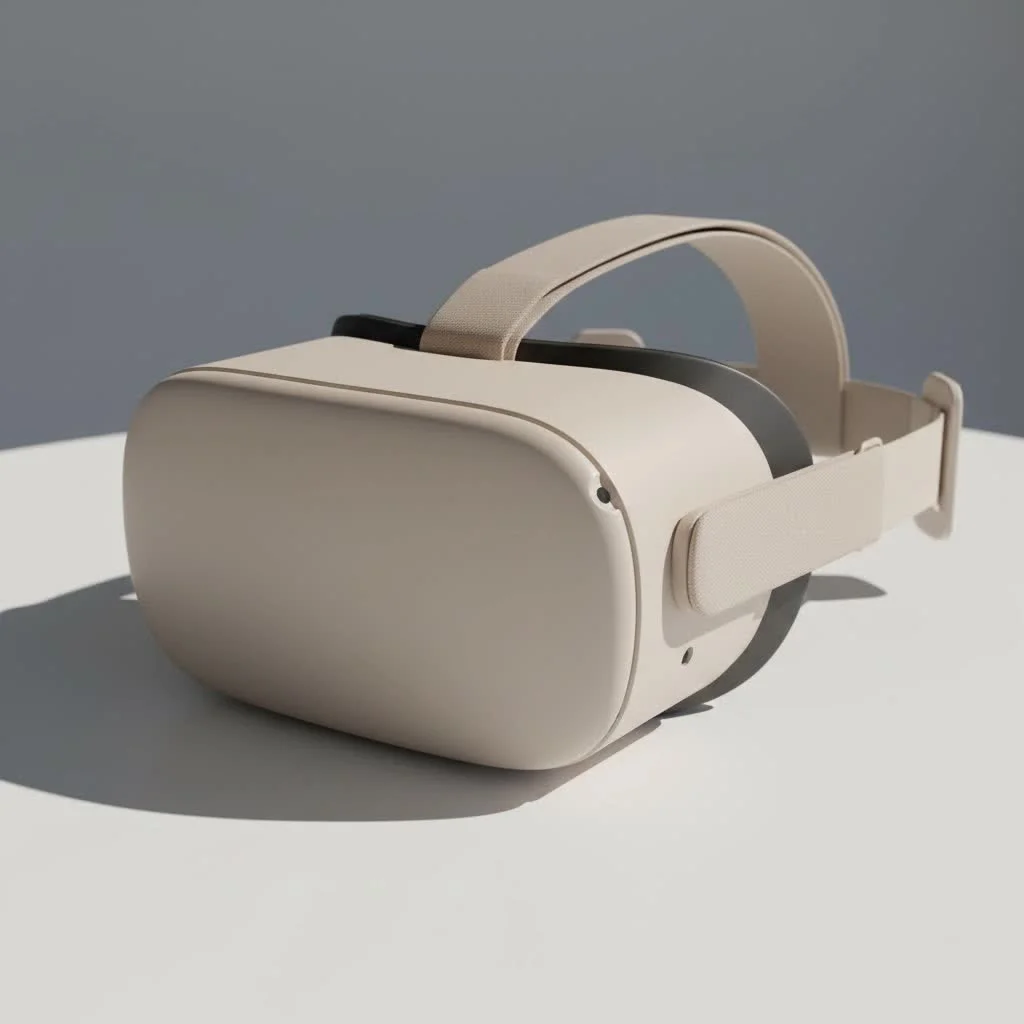 VR headset playing Roblox” style=”margin: 20px auto;width: 800px;max-width: 100%;height: auto” />
This comprehensive guide will walk you through compatible headsets, setup procedures, and our top picks for the ultimate immersive experience. We’ll break down the technical jargon into simple, actionable steps so you can spend less time troubleshooting and more time playing.
What Exactly is Roblox VR?
Roblox VR is not a separate game but an official feature that allows you to play many existing Roblox games using a virtual reality headset connected to a VR-ready computer. When you enable VR mode, the game switches from the standard screen view to a stereoscopic 3D view inside your headset. This technology tracks your head movements, and in many games, your hand movements, allowing you to interact with the game world in a much more direct and physical way. The result is a profound sense of presence and immersion that a traditional monitor simply cannot replicate.
Is Your PC Ready for Roblox VR?
Before you even think about which Roblox VR headset to buy, the first and most critical step is to ensure your computer can handle the demands of virtual reality. VR is significantly more resource-intensive than standard gaming because your PC needs to render two separate images (one for each eye) at a high frame rate to prevent motion sickness.
Here are the general minimum requirements for running Roblox in VR:
- Operating System: Windows 10 or 11
- Processor: Intel Core i5-4590 / AMD Ryzen 5 1500X or greater
- Memory: 8 GB RAM or more
- Graphics Card: NVIDIA GeForce GTX 1060 / AMD Radeon RX 580 or greater
- Video Output: HDMI 1.4, DisplayPort 1.2, or newer
- USB Ports: At least one USB 3.0 port
Pro Tip: These are the minimum specs. For a smoother, more enjoyable experience with higher-end headsets and more demanding Roblox games, aiming for a newer graphics card like an NVIDIA RTX 3060 or higher is highly recommended.
Which VR Headsets are Compatible with Roblox?
Roblox officially supports any headset that is compatible with the OpenVR (SteamVR) or Oculus PC platforms. This opens up a wide range of options for players.
Officially Supported Headset Types:
|
Our Picks for the Best VR Headset in 2026
As an Amazon Associate I earn from qualifying purchases.
|
||
| Num | Product | Action |
|---|---|---|
| 1 | FEEBZ 3D VR Headset for Kids 2.0 + Android Remote - for iPhone & Android Phones - with 3D VR Videos & Apps Links - Virtual Reality Goggles Set for Beginners |

|
| 2 | VR Headset for Phone, Virtual Reality Glasses with Bluetooth Headphones for Adults and Kids Play 3D VR Games Movies (White VR Only) |
|
| 3 | Meta Quest 2 — Advanced All-In-One Virtual Reality Headset — 256 GB (Renewed) |
|
| 4 | PlayStation VR2 Horizon Call of The Mountain™ Bundle (PSVR2) |
|
| 5 | Oculus Quest 2 Advanced All-in-One Virtual Reality Gmaing VR Headset 128GB Set, White |
|
| 6 | FEEBZ 3D VR Headset for Kids 2.0 + Android Remote - for iPhone & Android Phones - with 3D VR Videos & Apps Links - Virtual Reality Goggles Set for Beginners |
|
| 7 | PlayStation VR2 (PSVR2) |
|
| 8 | DESTEK V5 VR Headset for Kids w/VR Gamepad, 128 Premium VR apps Included, Anti-Blue Eyes Protected HD Lenses, 110° FOV Virtual Reality Headsets for iPhone, Android Phone- Black |
|
| 9 | VR Headset for Nintendo Switch 2 (2025), Switch 2 Virtual Reality VR Glasses with Adjustable HD Lenses and Comfortable Head Strap, Labo VR Kit 3D Goggles for Switch 2 Accessories, White&Blue |
|
| 10 | Oculus Quest 2 VR Headset 128GB Holiday Set - Advanced All-in-One Virtual Reality Headset Cover Set, White |
|
- Meta Quest Headsets (Quest 2, Quest 3, Quest Pro): While these are standalone headsets, they can connect to a PC via a Link Cable or wirelessly through Air Link to function as a PC VR headset. This is the most popular way to play Roblox in VR.
- HTC Vive Series: The original HTC Vive, Vive Pro, Vive Pro 2, and Vive Cosmos are all fully compatible through SteamVR. These are known for their excellent tracking capabilities.
- Valve Index: A high-end choice for VR enthusiasts, the Valve Index is renowned for its superior visual fidelity, wide field of view, and advanced “knuckle” controllers that track individual finger movements.
If your headset can run SteamVR, it can run Roblox VR.
How to Set Up and Play Roblox on Your VR Headset
Getting into Roblox VR for the first time might seem daunting, but it’s a straightforward process. Let’s walk through it step-by-step.
Step 1: Install the Necessary Software
First, you need to have the core software installed on your VR-ready PC.
- Roblox Player: Ensure you have the latest version of the Roblox client installed from the official website.
- Steam & SteamVR: If you are using an HTC Vive, Valve Index, or another non-Meta headset, you will need to install Steam and then download SteamVR from the Steam store.
- Meta Quest App: If you are using a Meta Quest headset, download and install the official Meta Quest desktop app. This is crucial for enabling Quest Link.
Step 2: Connect Your VR Headset to Your PC
How you connect your headset depends on the model you have.
- For Meta Quest 2/3: You have two options. You can use a high-quality USB-C cable (like the official Meta Link Cable or a compatible third-party one) to connect the headset directly to your PC’s USB 3.0 port. Alternatively, for a wireless experience, you can use the Air Link feature found within the Quest app settings. For Air Link, a strong Wi-Fi connection with your PC connected to your router via an Ethernet cable is essential for good performance.
- For HTC Vive or Valve Index: Follow the manufacturer’s instructions to connect the headset and base stations. This typically involves connecting the headset to your PC’s DisplayPort and USB ports.
Step 3: Enable VR Mode in Roblox
This is the final and simplest step.
- Launch the Roblox game you want to play.
- Once you are in the game, open the Settings menu (usually by pressing the ESC key).
- Navigate to the VR tab.
- Toggle the VR option to On.
Your view should automatically switch to your headset, and you’ll be standing inside the Roblox world. You can now use your VR controllers to move and interact.
The Best Roblox VR Headset Choices for 2025
Choosing the right headset comes down to budget, your PC’s power, and what you value most in a VR experience.
Meta Quest 3: The Best All-Rounder
The Meta Quest 3 is arguably the top recommendation for most Roblox players. Its biggest advantage is flexibility. You can use it as a standalone device for a huge library of native VR games, and then easily connect it to your PC for Roblox. Its improved pancake lenses offer excellent clarity, and the setup for PC VR via the Quest app is incredibly user-friendly.
- Pros: Wireless PC VR option (Air Link), great clarity, easy to set up, doubles as a standalone headset.
- Cons: Requires a strong Wi-Fi network for a good wireless experience, battery life can be a concern during long sessions.
HTC Vive Pro 2: The High-Fidelity Choice
For players with a powerful gaming PC who prioritize visual quality above all else, the HTC Vive Pro 2 is a fantastic option. It boasts a very high-resolution display that makes Roblox worlds look incredibly sharp and detailed. The SteamVR tracking system is also considered the gold standard for accuracy.
- Pros: Exceptional screen resolution, rock-solid tracking.
- Cons: Expensive, requires setting up external base stations.
Valve Index: The Enthusiast’s Pick
The Valve Index remains a favorite among long-time VR users for its overall premium experience. It features a wider field of view than most headsets, which enhances immersion, and its unique controllers that strap to your hands are fantastic for natural interactions in games that support them.
- Pros: Excellent audio, comfortable, advanced controllers.
- Cons: One of the priciest options, also requires base station setup.
According to VR hardware analyst, Dr. Alex Chen, “The entry of accessible yet powerful headsets like the Quest 3 has democratized PC VR. For an expansive platform like Roblox, this means millions more users can now experience these virtual worlds with a level of immersion we could only dream of a few years ago.”
Frequently Asked Questions (FAQ)
Can you play Roblox VR without a PC?
No, the official Roblox VR feature requires a VR-ready Windows PC to run the game. Standalone headsets like the Meta Quest 3 cannot run Roblox natively; they must connect to a computer to enable VR gameplay.
Is Roblox VR free to use?
Yes, the VR feature within Roblox is completely free to use once you own the necessary hardware. This includes a compatible PC and a VR headset.
Are all Roblox games compatible with VR?
Not all Roblox games are fully compatible with VR, though many can be played. The quality of the VR experience varies, with some games specifically designed or updated for VR offering better motion controls and interfaces than others.
Can I use a PlayStation VR (PSVR) headset to play Roblox?
No, PlayStation VR (PSVR) headsets are not officially compatible with a PC for playing Roblox. PSVR is designed exclusively for Sony’s PlayStation consoles, and unofficial workarounds are often unreliable.
Is playing Roblox in VR safe for children?
Most VR headset manufacturers recommend users be at least 13 years old due to potential impacts on eyesight and physical balance. For younger players, parental supervision, a safe play area, and frequent breaks are crucial to prevent eye strain and motion sickness.
Final Thoughts
Stepping into Roblox with a VR headset is a transformative experience that brings you closer to the creativity and fun of the platform than ever before. Whether you opt for the versatile Meta Quest 3, the high-resolution HTC Vive Pro 2, or the enthusiast-grade Valve Index, a world of immersive adventure awaits. The key is to ensure your PC is up to the task and to follow the simple setup steps. Once you’re in, you’ll see your favorite Roblox games in a whole new light. So gear up, get connected, and prepare to be amazed.
Frequently Asked Questions
Can you play Roblox VR without a PC?
No, the official Roblox VR feature requires a VR-ready Windows PC to run the game. Standalone headsets like the Meta Quest 3 cannot run Roblox natively; they must connect to a computer to enable VR gameplay.
Is Roblox VR free to use?
Yes, the VR feature within Roblox is completely free to use once you own the necessary hardware. This includes a compatible PC and a VR headset.
Are all Roblox games compatible with VR?
Not all Roblox games are fully compatible with VR, though many can be played. The quality of the VR experience varies, with some games specifically designed or updated for VR offering better motion controls and interfaces than others.
Can I use a PlayStation VR (PSVR) headset to play Roblox?
No, PlayStation VR (PSVR) headsets are not officially compatible with a PC for playing Roblox. PSVR is designed exclusively for Sony's PlayStation consoles, and unofficial workarounds are often unreliable.
Is playing Roblox in VR safe for children?
Most VR headset manufacturers recommend users be at least 13 years old due to potential impacts on eyesight and physical balance. For younger players, parental supervision, a safe play area, and frequent breaks are crucial to prevent eye strain and motion sickness.
How to Set Up and Play Roblox on Your VR Headset
Setting up Roblox VR involves installing necessary software, connecting your VR headset to your PC, and enabling VR mode within the Roblox game settings. This process allows you to experience Roblox games in an immersive virtual reality environment.
First, ensure you have the latest Roblox Player client installed. For non-Meta headsets, install Steam and SteamVR. If using a Meta Quest, download the official Meta Quest desktop app for Quest Link functionality.
Meta Quest 2/3 users can connect via a high-quality USB-C cable to a PC's USB 3.0 port or wirelessly using Air Link with a strong Wi-Fi connection. HTC Vive or Valve Index users should follow manufacturer instructions, typically connecting the headset to the PC's DisplayPort and USB ports.
Launch your desired Roblox game, then open the Settings menu (usually by pressing ESC). Navigate to the VR tab and toggle the VR option to 'On'. Your view will then switch to your headset, allowing you to use VR controllers for interaction.
Get our weekly buyer guide
Practical specs, not advice. Unsubscribe anytime.
The info on PC specs was super useful. I thought my old rig might be okay, but after checking the minimum requirements (especially the NVIDIA GeForce GTX 1060 recommendation), I realized I needed an upgrade. Once I got that sorted, my Valve Index has been incredible for Roblox VR. It’s definitely an enthusiast-grade experience, just like it said.
This was exactly what I needed! I was confused about which platform to prioritize, but understanding the OpenVR/Oculus PC compatibility made it clear. My son is obsessed with Roblox, and now with his new Quest 3, he’s totally immersed. It’s great to see him so engaged with his games in 3D.
I’ve been wanting to get into Roblox VR for ages, and this guide really helped me pick the right headset. I ended up going with the Meta Quest 3, and it’s been fantastic for versatility. The setup was surprisingly smooth, and now I’m enjoying my favorite Roblox games in a whole new way. Highly recommend following the advice here!
I tried setting up my HTC Vive Pro 2 for Roblox VR after reading about its high fidelity. While the graphics are amazing, I did run into a few snags with the OpenVR (SteamVR) compatibility. It took a bit more troubleshooting than I expected to get everything working perfectly. Still, once it’s running, the immersion is pretty good.